Note_Tech
All technological notes.
Project maintained by simonangel-fong Hosted on GitHub Pages — Theme by mattgraham
Linux - File System: File Editor
Linux File Editor
-
text editor- a program which enables to create and manipulate data(text) in a Linux file.
-
Standard text editors:
| CMD | Editor |
|---|---|
vi |
Visual editor, available in every distro |
vim |
Advance version of vi |
ed |
Standard line editor, available in Redhat |
ex |
Extended line editor , available in Redhat |
emacs |
A full screen editor |
pico |
Beginner’s editor |
Nano Editor
Nanois a simple editor.- Not advanced and
vioremacs. - If
nanoisn’t available, look forpico.
| Shortcut | Desc |
|---|---|
^+g |
Help |
^+o |
Save |
^+c |
Cancel |
^+x |
Exit |
VI Editor
- Has advanced and powerful features
- Not intuitive
- Harder to learn than nano
- Requires a time investment
| Command | Desc |
|---|---|
vi file |
Edit file. |
vim file |
Same as vi, but more features. |
view file |
Starts vim in read-only mode. |
vimtutor |
Run vim tutor |
Vi Mode
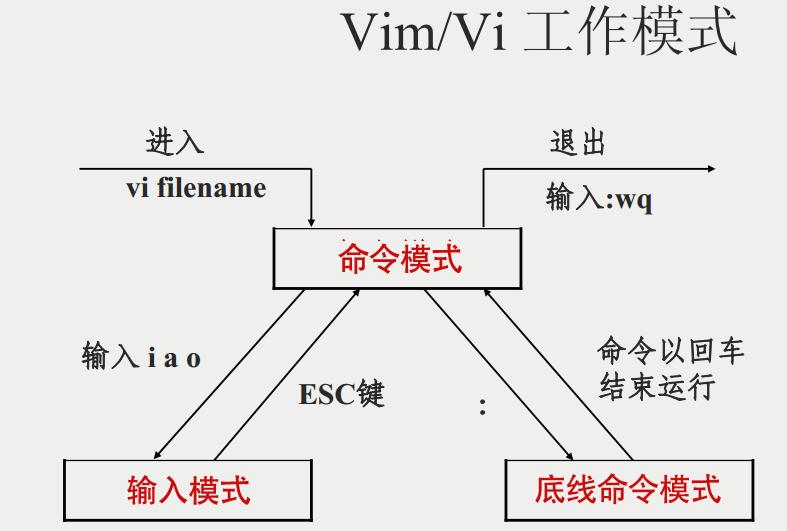
| Mode | Key |
|---|---|
| Command | Esc |
| Insert | i I a A |
| Line | : |
Command Mode
Navigation
| Key | Desc |
|---|---|
k |
Up one line. |
j |
Down one line. |
h |
Left one character. |
l |
Right one character. |
w |
Right one word. |
b |
Left one word. |
^ |
Go to the beginning of the line. |
$ |
Go to the end of the line. |
gg |
Go to the first line |
G |
Go to the last line |
:n |
Go to line n |
Deleting Text
| Key | Desc |
|---|---|
x |
Delete a character. |
dw |
Delete a word. |
dd |
Delete a line. |
D |
Delete from the current position. |
Changing/Replacing Text
| Key | Desc |
|---|---|
r |
Replace the current character. |
cw |
Change the current word. |
cc |
Change the current line. |
c$ |
Change the text from the current position. |
C |
Same as c$. |
~ |
Reverses the case of a character. |
Copying and Pasting
| Key | Desc |
|---|---|
yy |
Yank (copy) the current line. |
y<position> |
Yank the position. |
p |
Paste after cursor |
P |
Paste before cursor |
Undo / Redo
| Key | Desc |
|---|---|
u |
Undo |
Ctrl-R |
Redo |
Searching
| Key | Desc |
|---|---|
/<pattern> |
Start a forward search. |
?<pattern> |
Start a reverse search. |
n |
go to the next match |
N |
go to the previous match |
Insert Mode
- Key to enter insert mode
- ECS to escape to command mode
| Key | Desc |
|---|---|
i |
Insert at the cursor position. |
I |
Insert at the beginning of the line. |
a |
Append after the cursor position. |
A |
Append at the end of the line. |
o |
Open a new line below the current line |
O |
Open a new line above the current line |
Repeating Commands
-
Repeat a command by preceding it with a number.
5k= Move up a line 5 times80i<Text><ESC>= Insert<Text>80 times80i*<Esc>= Insert 80 “*” characters
| Key | Desc |
|---|---|
{num}{command} |
Repeat command {num} times |
. |
Repeat previous change |
Line Mode
:to enter line mode- ECS to escape to command mode
| Key | Desc |
|---|---|
:w |
Writes (saves) the file. |
:w file2 |
Writes (saves) into a new file |
:w! |
Forces the file to be saved. |
:q |
Quit. |
:q! |
Quit without saving changes. |
:wq! |
Write and quit. |
shift + zz |
Save and quit |
:x |
Same as :wq. |
:n |
Positions the cursor at line n. |
:$ |
Positions the cursor on the last line. |
:set nu |
Turn on line numbering. |
:set nonu |
Turn off line numbering. |
:help [subcommand] |
Get help. |
Find and Replace
| Key | Desc |
|---|---|
:s/{old}/{new}/{options} |
Substitute {new} for {old} on the current line |
:%s/{old}/{new}/{options} |
Substitute {new} for {old} in the entire document |
-
The g option substitutes all occurrences on a line, otherwise just the first occurrence is changed per line.
-
example
# search and replace all occurrences on a single line
:s/old_string/new_string/g

# search and replace all occurrences on a single line, ignoring case
:s/old_string/new_string/gi

# search and replace all occurrences access all the content in the file
:%s/old_string/new_string/g
# case-insensitive
:%s/old_string/new_string/gi
# with confirmation
:%s/old_string/new_string/gic

# Within Specific Lines
:start_line_number, end_line_number s/<search_term>/<replace_term>/g
# example: for the first line
:0, 1 s/vim/baeldung/gi
# or for 2nd line
:s/article/tutorial/g 2
# example: for the current line to the last
:.,$s/article/tutorial/g

# search for whole word
# example: only replace "cover" but not "covering"
:s/\<cover\>/go through/gi
---

## Graphical Editors

| Editor  | Desc                                 |
| ------- | ------------------------------------ |
| `gedit` | The default text editor for Gnome.   |
| `emacs` | Emacs has a graphical mode too.      |
| `gvim`  | The graphical version of vim.        |
| `kedit` | The default text editor for the KDE. |

- Redhat 自带:gedit

---

[TOP](#linux---file-system-file-editor)