Note_Tech
All technological notes.
Project maintained by simonangel-fong Hosted on GitHub Pages — Theme by mattgraham
Linux - Network: SSH
- Linux - Network: SSH
SSH Protocol
-
SSH (Secure Shell)- a cryptographic network protocol that allows secure remote login and other secure network services over an unsecured network.
- widely used in Linux to manage servers, transfer files, and perform administrative tasks.
- Port number: 22
openssh Package
-
openssh- a package that provides tools for secure remote login, remote command execution, and secure file transfer over a network using the
SSH (Secure Shell)protocol.
- a package that provides tools for secure remote login, remote command execution, and secure file transfer over a network using the
-
Key Features
- Encrypted Communication:
- Ensures data integrity and confidentiality during communication.
- Authentication Methods:
- Supports password-based, key-based, and other authentication mechanisms.
- Port Forwarding:
- Enables secure tunneling of network services.
- File Transfer:
- Includes tools like
scpandsftpfor secure file transfers.
- Includes tools like
- Remote Command Execution:
- Allows running commands on a remote machine without logging in interactively.
- Encrypted Communication:
-
Document Ref:
- https://docs.oracle.com/en/operating-systems/oracle-linux/openssh/openssh-AboutOpenSSH.html#about-openssh
Components
SSH Server (sshd):- The server daemon that listens for incoming SSH connections.
- Configuration file:
/etc/ssh/sshd_config.
SSH Client (ssh):- The command-line client used to initiate SSH connections to remote servers.
- Configuration file:
~/.ssh/config.
- Secure File Transfer Tools:
scp:Secure Copy Protocolfor transferring files between systems.sftp:Secure File Transfer Protocol, an interactive file transfer client.
- Key Management Tools:
ssh-keygen: Generates SSH key pairs for authentication.ssh-copy-id: Copiespublic keysto a remote host forkey-based authentication.ssh-agent: A key management agent for managingprivate keysduring a session.ssh-add: Adds private keys to thessh-agent.sshd-keygen: Generates host keys for the SSH server.ssh-keyscan: Gatherspublic keysfrom remote hosts.
Package Commands
| Command | Description |
|---|---|
rpm -qa \| grep openssh |
Check if the openssh package installed |
dnf list installed openssh |
Check if the openssh package installed |
dnf list installed \| grep openssh |
Check if the openssh package and dependencies |
apt list --installed \| grep openssh |
Check if the openssh package installed |
dnf install -y openssh |
Install openssh package |
apt install -y openssh |
Install openssh package |
Service Commands
openssh-server- a suite of network connectivity tools that provides secure communications between systems.
sshd:- The
OpenSSH servercomponent - The SSH daemon that listens for incoming SSH connections.
- The
| Command | Description |
|---|---|
systemctl list-units \| grep sshd.service |
Check the ssh service status |
systemctl list-unit-files \| grep sshd.service |
Check the ssh service unit file |
systemctl list-unit-files \| grep sshd.service |
Check the ssh service unit file |
sudo systemctl status sshd |
Check the sshd status |
sudo systemctl start sshd |
Start the sshd status |
sudo systemctl enable sshd |
Enable the sshd status at startup |
Configuration Files
- Client Configuration:
/etc/ssh/ssh_config - Server Configuration:
/etc/ssh/sshd_config
Common Command
-
The tools include:
scp- Secure file copying. (Deprecated in Oracle Linux 9)sftp- Secure File Transfer Protocol (FTP).ssh- Secure shell to log on to or run a command on a remote system.sshd- Daemon that listens for the OpenSSH services.ssh-keygen- Creates RSA authentication keys.
-
Connection
| Command | Description |
|---|---|
ssh user@ip |
Connect remote instance using username and ip address |
ssh user@ip -p portNum |
SSH connection using custom port number |
SSH Configurations
-
Configuration Files
-
Location:
- server-side settings:
/etc/ssh/sshd_config - client-side settings:
ssh_config
- server-side settings:
-
To configure ssh:
-
- Login as
root
- Login as
-
- edit the configuration file in remote server
/etc/ssh/sshd_config
- edit the configuration file in remote server
-
- Restart
sshdservice:systemctl restart sshd
- Restart
-
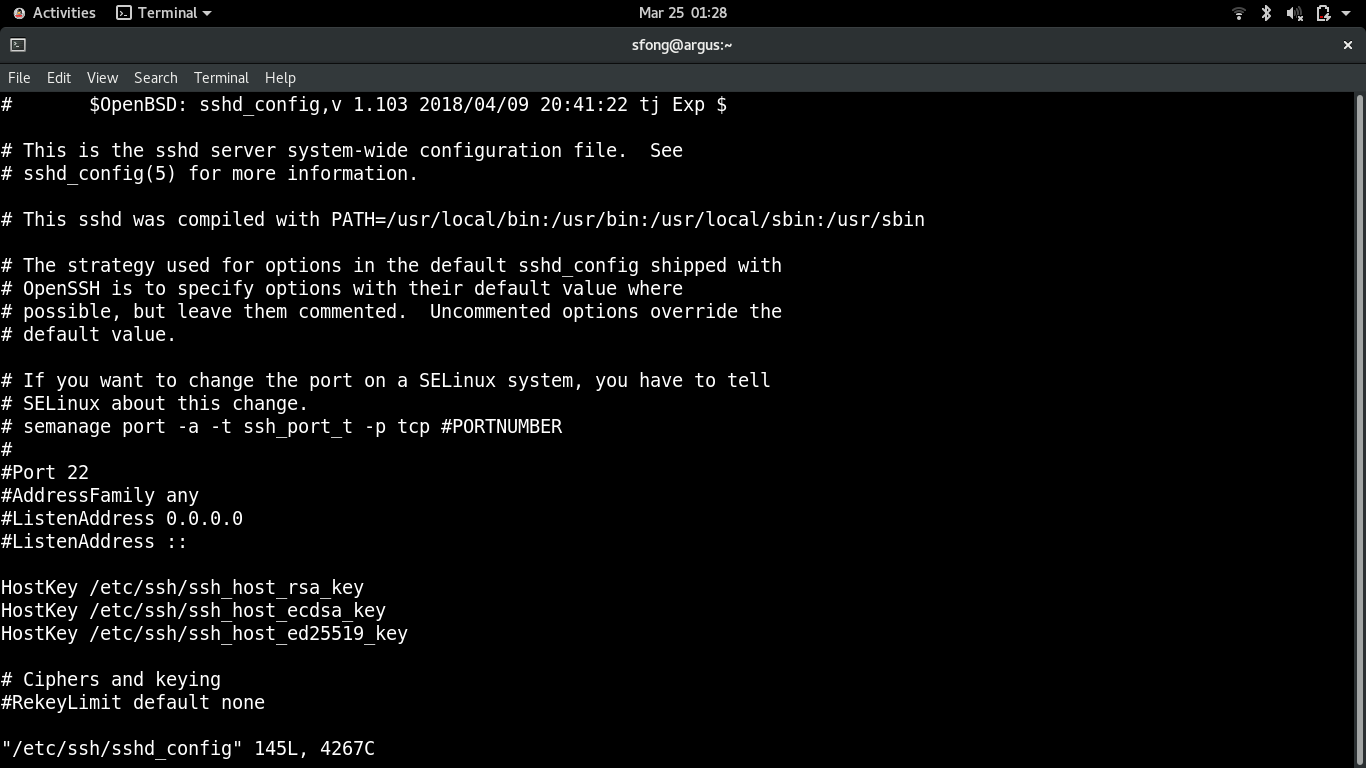
Common Configuration
| Directives | Default | Desc |
|---|---|---|
Port |
22 | the port on which SSH listens |
ListenAddress |
0.0.0.0 | local addresses the sshd service should listen on |
AuthorizedKeysFile |
~/.ssh/authorized_keys | the location of the file containing a user’s authorized keys. |
PermitRootLogin |
yes | Whether enabling root login |
PubkeyAuthentication |
yes | Whether enable users to use key pair to login |
PasswordAuthentication |
yes | Whether enable clients to login with a username and password |
PermitEmptyPasswords |
no | Whether enablethe use of null passwords. |
ChallengeResponseAuthentication |
yes | Whether enable challenge response authentication mechanism |
UsePAM |
yes | Whether enable user authentication via PAM. |
X11Forwarding |
No | Whether enable remote access to graphical applications |
SyslogFacility |
AUTH | Defines the facility code to be used |
LogLevel |
INFO | the level of criticality for the messages to be logged. |
- Best practice
# Set PermitRootLogin to no to prohibit root from logging in with SSH. Then, elevate a user's privileges after logging in.
PermitRootLogin no

PasswordAuthentication no
Idle Timeout Interval
- To avoid having an unattented SSH session
- Once the interval has passed, the idle user will be automatically logged out.
- Login as
root - configuration file in remote server
/etc/ssh/sshd_config- Restart
sshdservice:systemctl restart sshd
- Restart
# sets the timeout interval for an SSH session
# 600 secs = 10 min
ClientAliveInterval 600
# the number of client alive messages that can be sent before the client disconnects and the session is terminated
ClientAliveCountMax 0
Disable root login
- It disables any user to login to the system with root account.
- A secure measure to take for the first time setup.
# sets the timeout interval for an SSH session
PermitRootLogin no
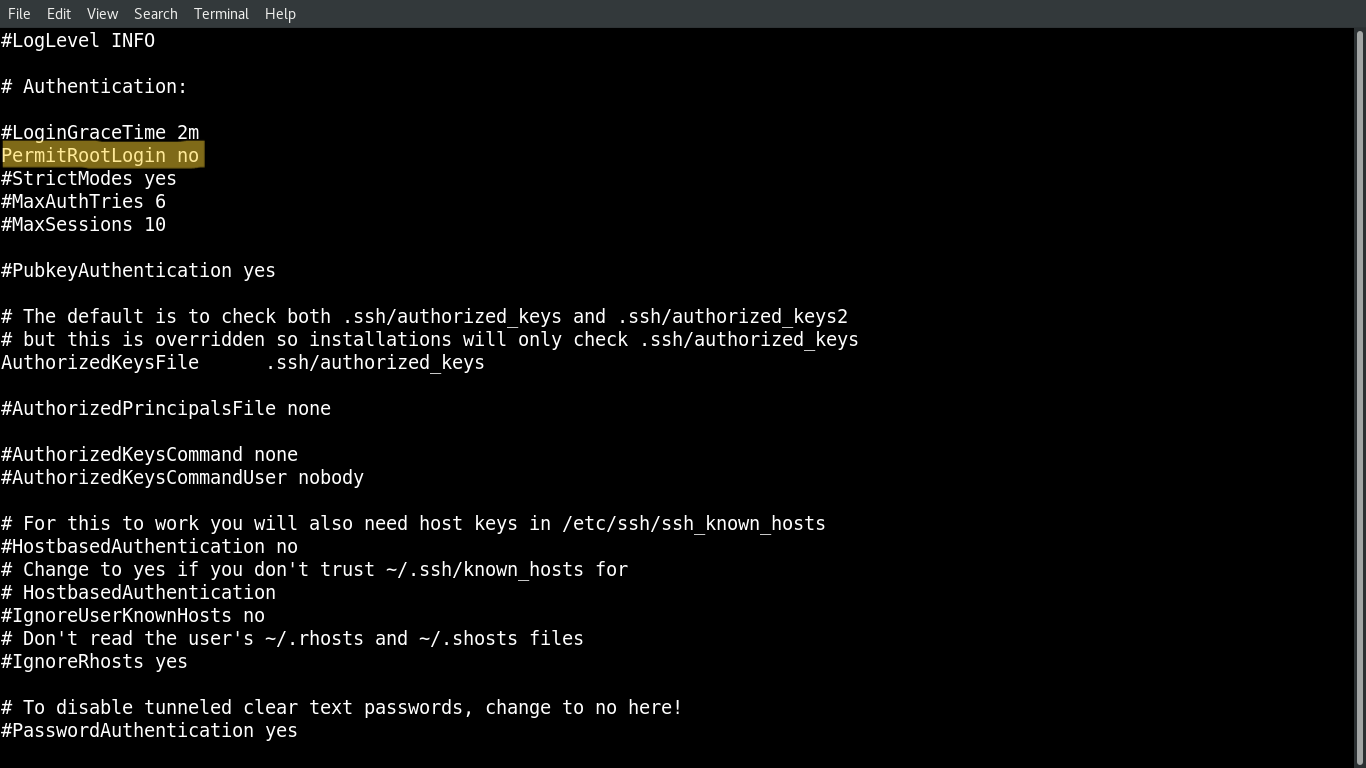
Disable Empty Passwords
- Prevent remote login from accounts with empty passwords.
PermitEmptyPasswords no
Limit Users’ SSH Access
- To limit the only users who need remote access
# AllowUsers user1 user2
Using a Custom Port Number
- To secure the connection by using a custom port
Port 22
- Client access:
ssh user@ip -p portNum
Access without Password (SSH-Keys)
-
Advantage:
- Avoid repetitive login
- Enable automation through script
-
Keys are generated at user level
- common user
- root
-
Steps:
-
- Generate the key at Client side.
- By default, the key is saved at the user level
- private key:
~/.ssh/key_name - public key:
~/.ssh/key_name.pub
- private key:
- By default, the key is saved at the user level
- Generate the key at Client side.
-
- Copy the key from Client to Server
- The key is copy to the remote server
- If the server login as the root, then the key will be placed in the
/root/.ssh/authorized_keys
- Copy the key from Client to Server
-
- Login to server from client.
-
Lab: Access with ssh-keys
-
Architecture:
- Client: Redhat 8
- Server: Ubuntu22
# Generate the key
ssh-keygen
# Generating public/private rsa key pair.
# Enter file in which to save the key (/home/rheladmin/.ssh/id_rsa):
# Enter passphrase (empty for no passphrase):
# Enter same passphrase again:
# Your identification has been saved in /home/rheladmin/.ssh/id_rsa.
# Your public key has been saved in /home/rheladmin/.ssh/id_rsa.pub.
# The key fingerprint is:

# copy the key
ssh-copy-id root@server_ip
# /usr/bin/ssh-copy-id: INFO: Source of key(s) to be installed: "/home/rheladmin/.ssh/id_rsa.pub"
# /usr/bin/ssh-copy-id: INFO: attempting to log in with the new key(s), to filter out any that are already installed
# /usr/bin/ssh-copy-id: INFO: 1 key(s) remain to be installed -- if you are prompted now it is to install the new keys
# root@server_ip's password:

# Number of key(s) added: 1

# Now try logging into the machine, with:   "ssh 'root@server_ip'"
# and check to make sure that only the key(s) you wanted were added.

# login without password
ssh root@server_ip
ssh root@192.168.204.156
Lab: Install openssh on Redhat
- By default, openssh-server is installed out of the box.
- Install
openssh-server
# list packages to verify installation
dnf list installed | grep ssh

# if needed to install
sudo dnf install openssh-server
- Start, Enable
sshdDeamon
sudo systemctl start sshd   # Start the sshd service
sudo systemctl enable sshd    # configure it to start following a system reboot
sshdDeamon
# start
sudo systemctl start sshd
# restart deamon after new configuration
sudo systemctl restart sshd
# status
sudo systemctl status sshd
-
Firewall Configuration
-
Configure the firewall to allow ssh connections.
- allowing the port of SSH
# configure firewall settings
sudo firewall-cmd --permanent --add-service=ssh
# success

# reload the firewall to enable the new settings
sudo firewall-cmd --reload
sudo firewall-cmd --list-all
Lab: Install openssh on Ubuntu
- Intall openssh-server
sudo apt-get -y update  # update packages
# update the local package index. It downloads package details from all set sources to refresh the package cache.
# sudo: Superuser Do,
# apt: package manager
# sudo apt: allows a root user to perform operations in the apt repository.
# sudo apt update: downloads package details from all set sources which are commonly listed in the /etc/apt/sources.list file and other files found in the /etc/apt/sources.list.d directory. As a result, apt package cache will be updated ensuring your system has the latest package information.
sudo apt-get -y install openssh-server  # install
- Check and enable ssh
sudo systemctl status ssh   # check status
sudo systemctl enable ssh --now   # enable and start the ssh service immediately
- Test for SSH: Connect the local host using SSH
ssh localhost # build connection to localhost using SSH, pwd is required.
- Get the public url
curl ifconfig.me
- Connect to remote
ssh username@ip
Lab: Generate Key
# on the client
# Generate RSA keys without a password (-N) and without detailed output (-q).
ssh-keygen -N "" -q

# confirm
# private key
cat ~/.ssh/id_rsa

# public key
cat ~/.ssh/id_rsa.pub

# copy public key to server
ssh-copy-id 192.168.128.50
# confirm the client know the host
cat ~/.ssh/known_hosts

# connect
ssh 192.168.128.50

# Confirm login attempt on server
tail /var/log/secure

# run server command in the client
ssh 192.168.128.50 hostname
ssh 192.168.128.50 nmcli c